Lab 7: Runtime Security with API Governance (Optional)
Overview
Duration: 15 minutes
In lab 6, we applied governance rulesets on the design specifications of our APIs to ensure best practices and consistency. In this lab, we will use API Governance to ensure that our API Manager policies from lab 2 are applied. This will ensure that policies are applied and improve API security with a comprehensive view of compliance posture.
Reference documentation:
Step 1: Apply a Governance Ruleset
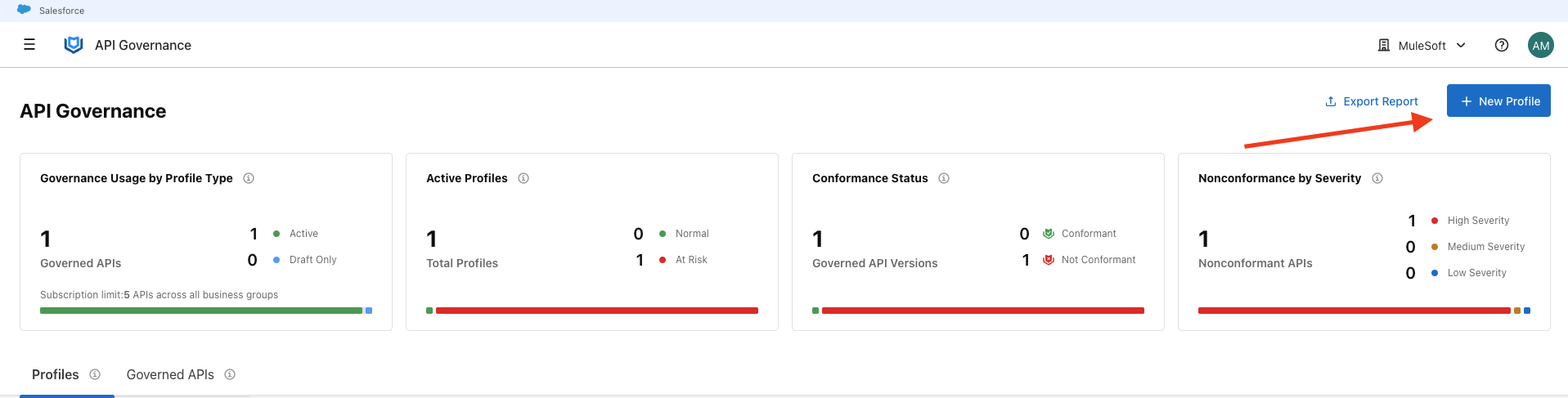
From the top left menu, open API Governance, and click the ‘New Profile’ button on the top right.
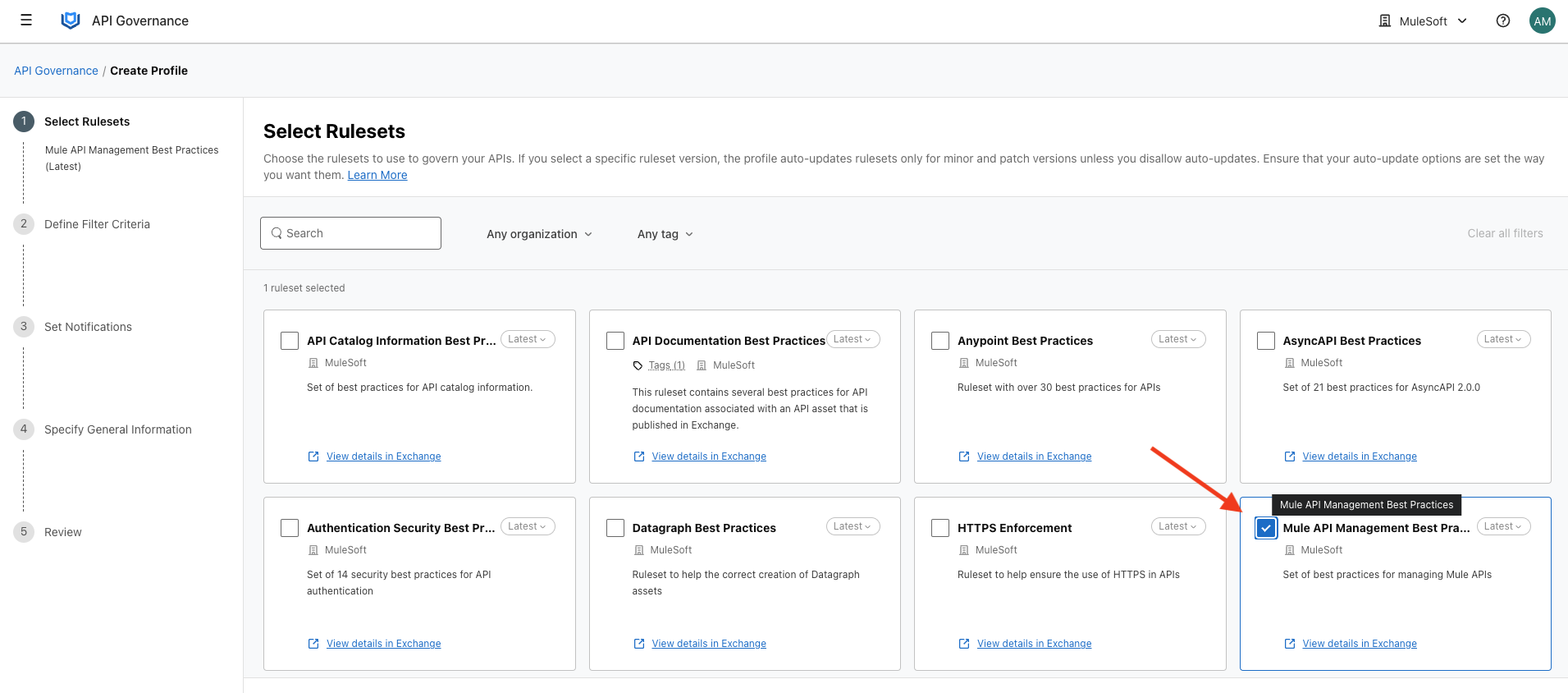
Click the checkbox on the ‘Mule API Management Best Practices’ ruleset.
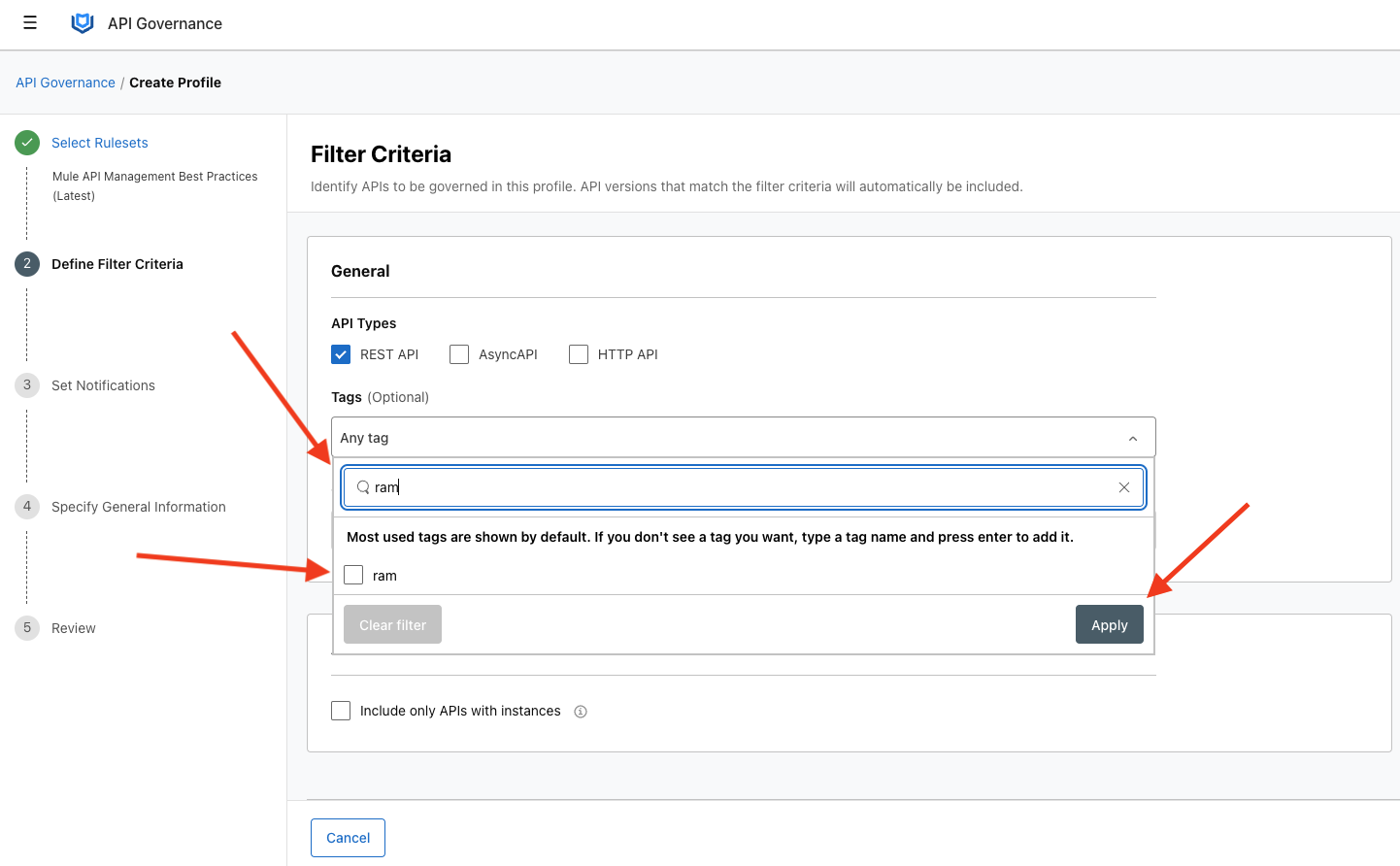
Search for your initial tag, and press the white box to check mark it. Hit apply after.
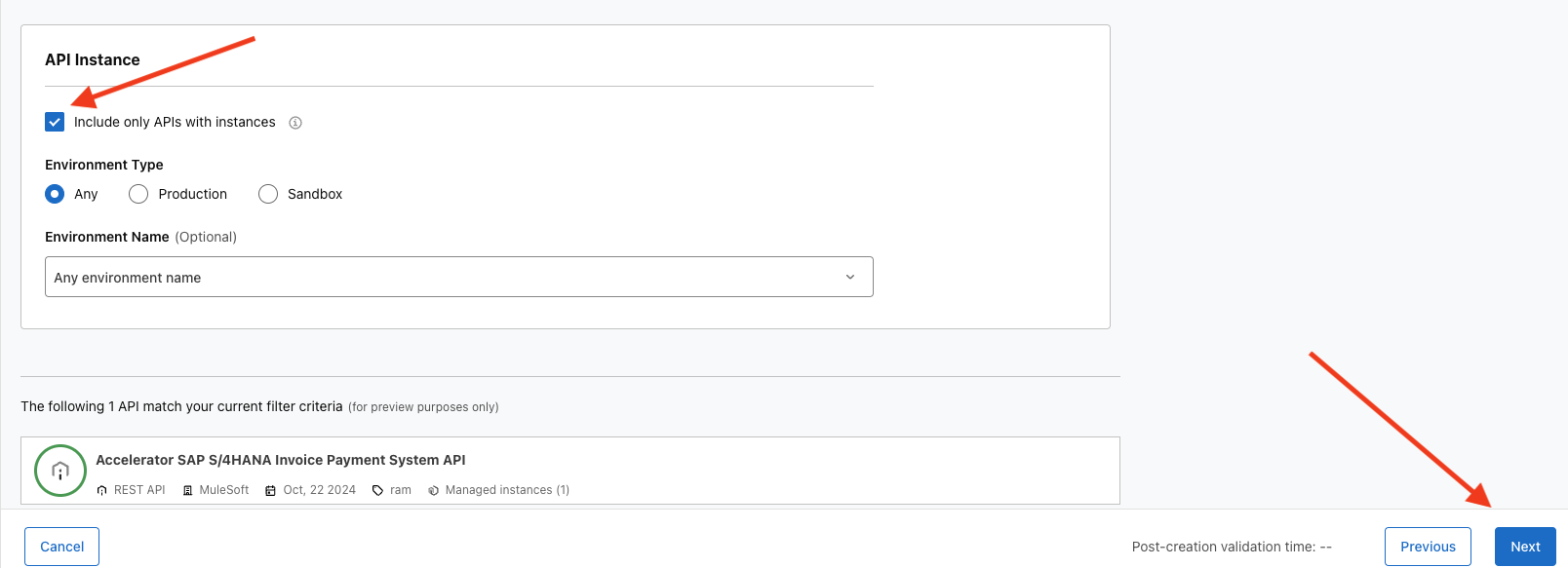
Make sure the ‘Include only APIs with instances’ box is checked and that your API from lab 2 appears below. Click Next.
Click the ‘Others’ checkbox, and type in your email address.
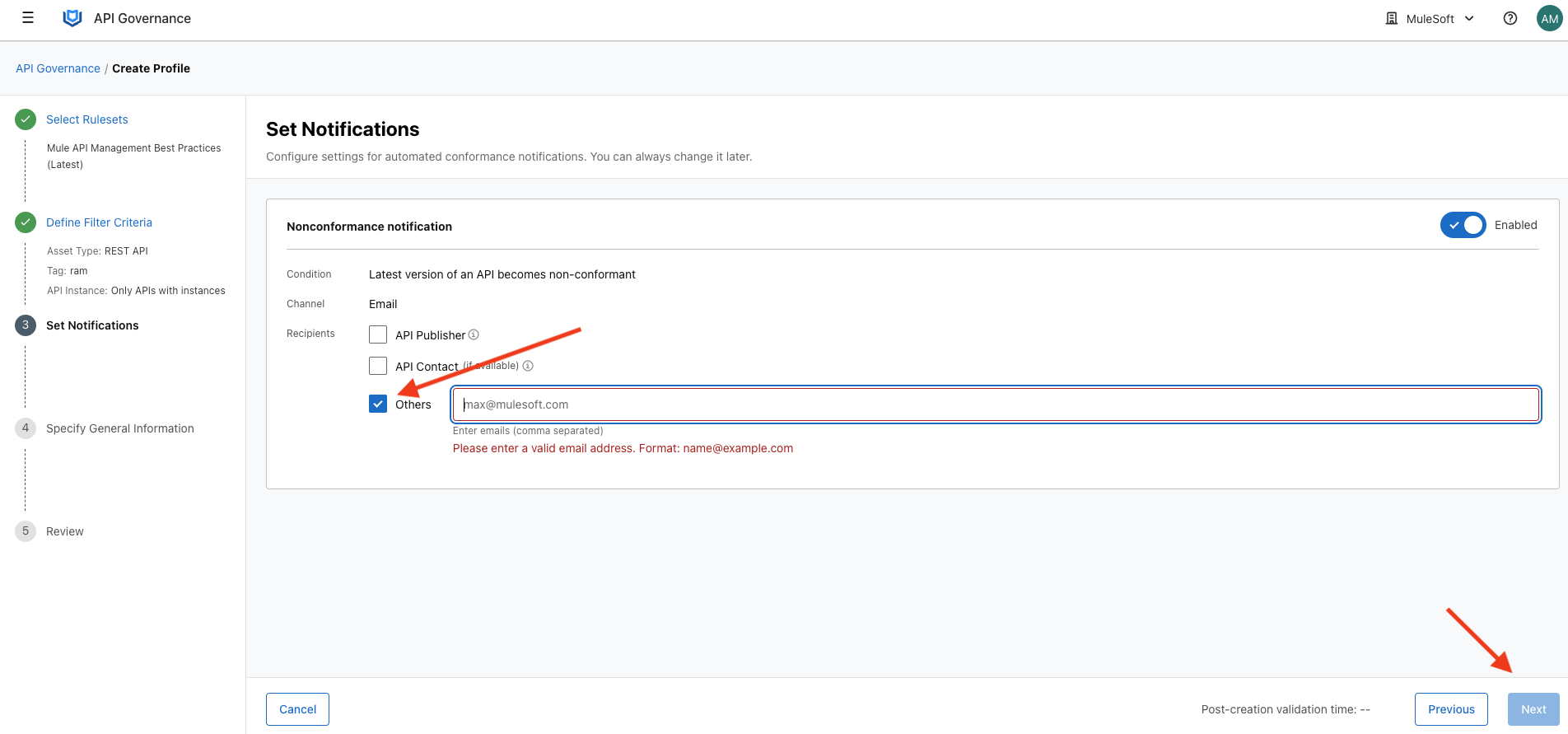
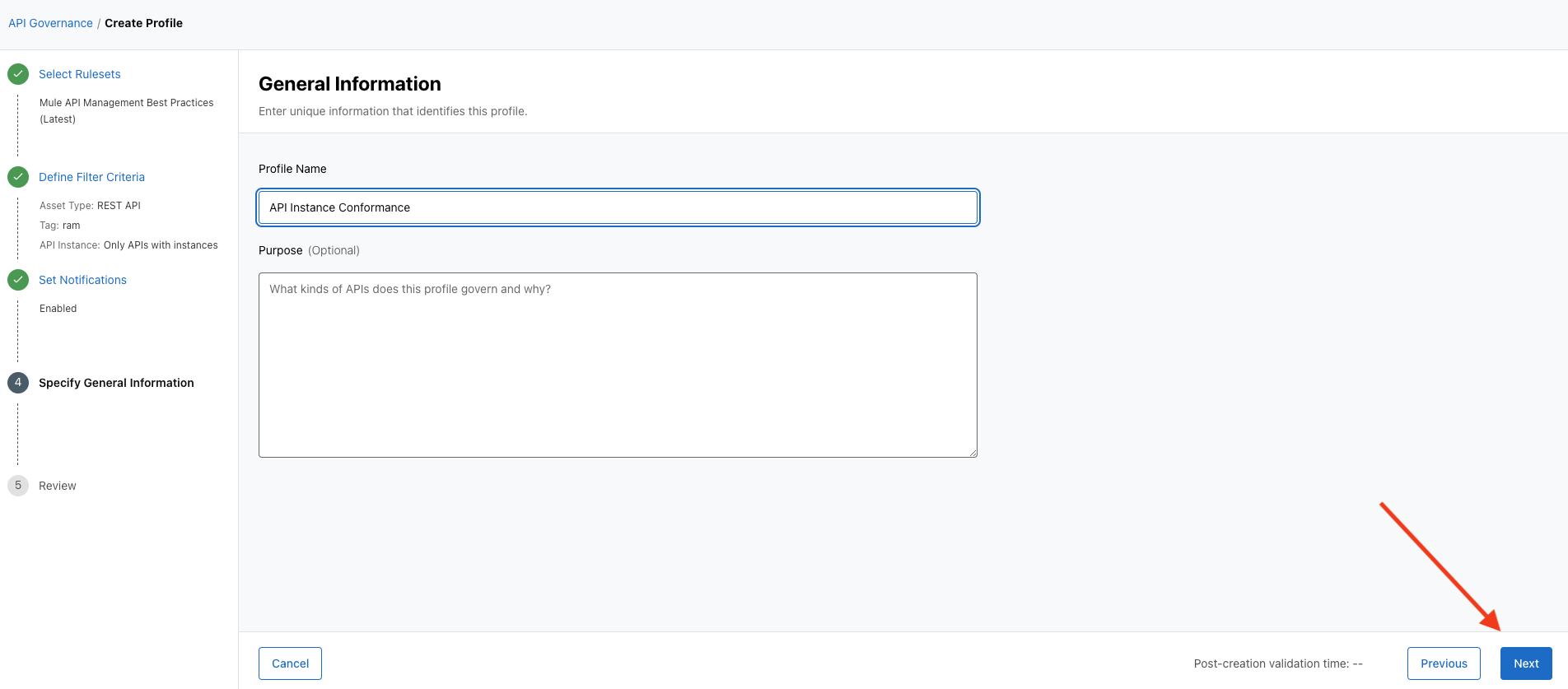
Name the Profile ‘API Instance Conformance <Your initials>’ and press Next.
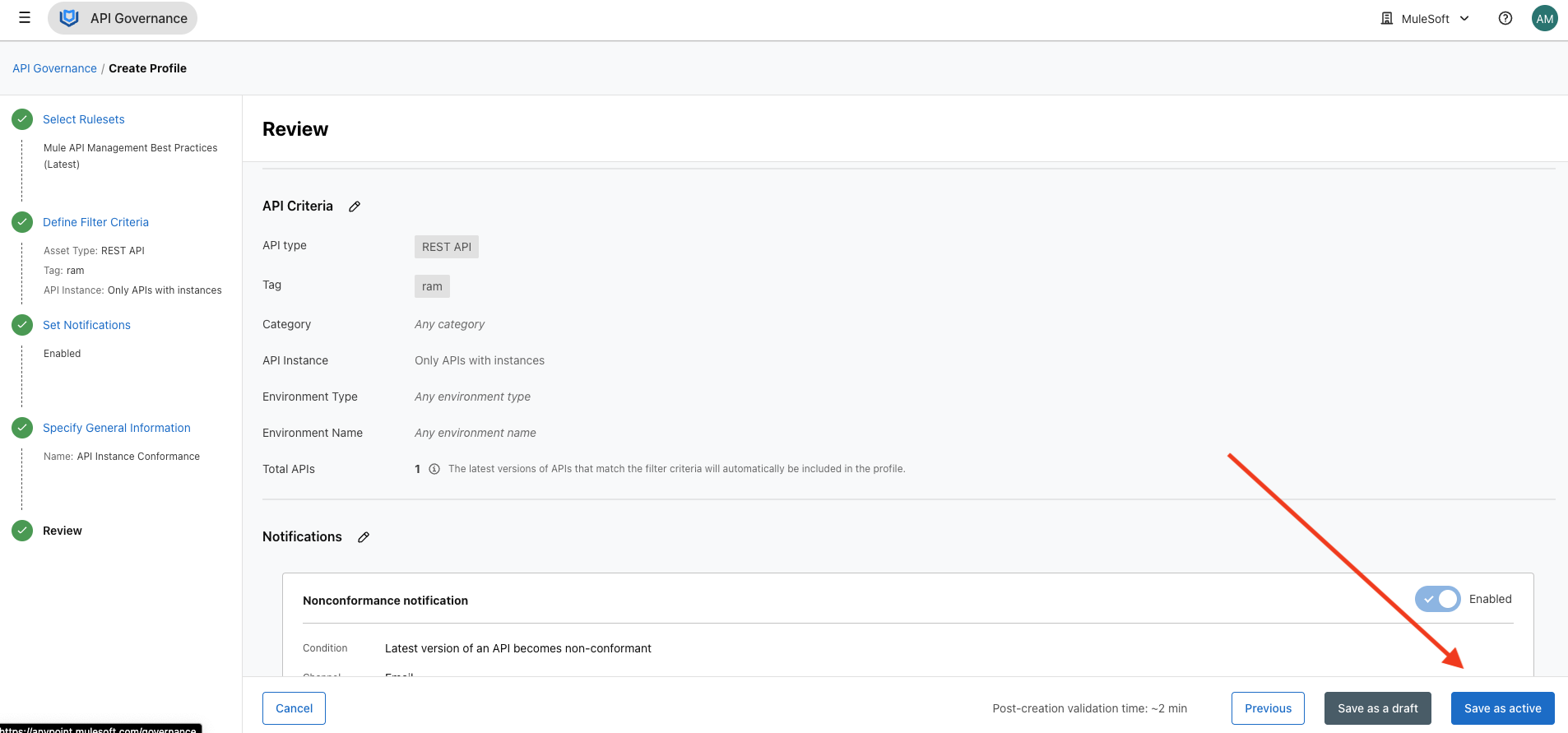
Review the details, then press ‘Save as active’
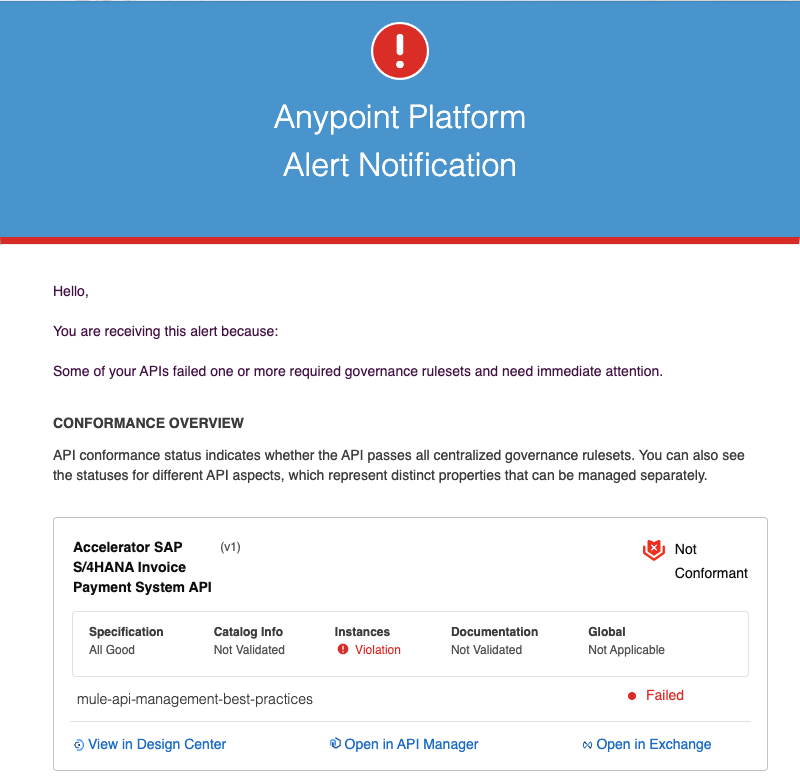
The ruleset will take a few minutes to run, when it’s done you will receive an email informing you that your instance is non-compliant.
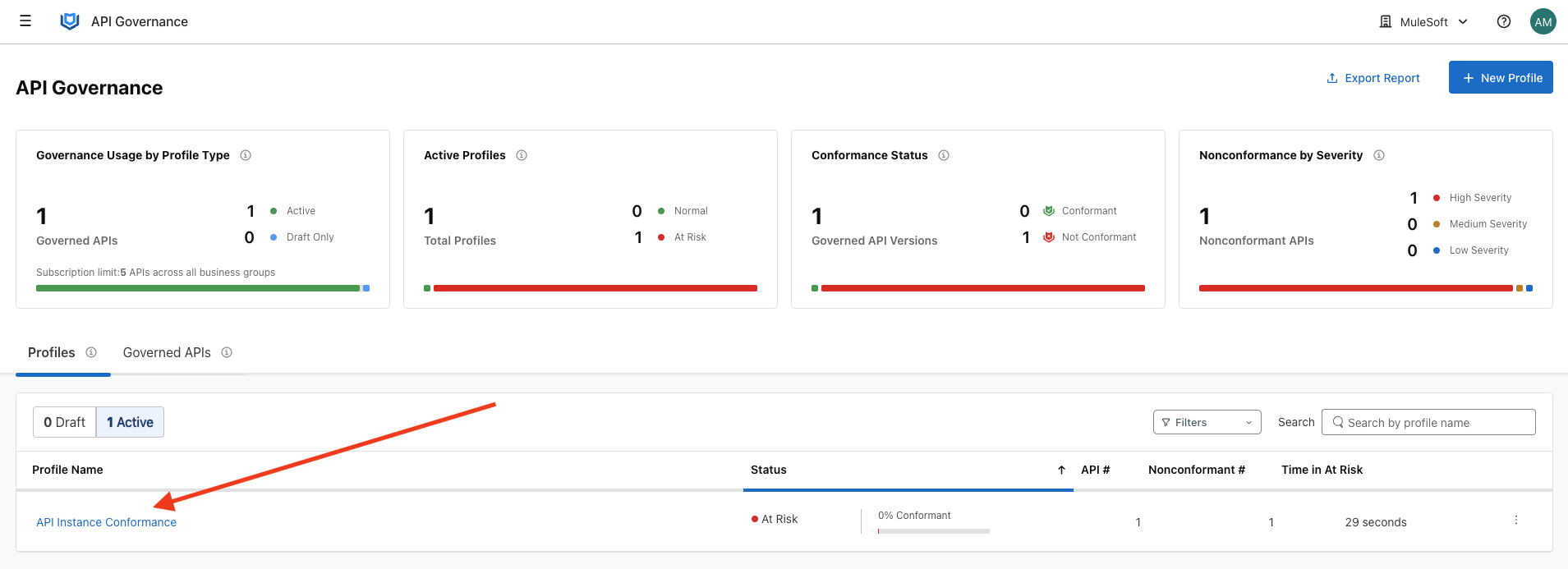
Once the ruleset runs, you can see that 1 API is marked ‘At Risk’. Click the Profile name on the left.
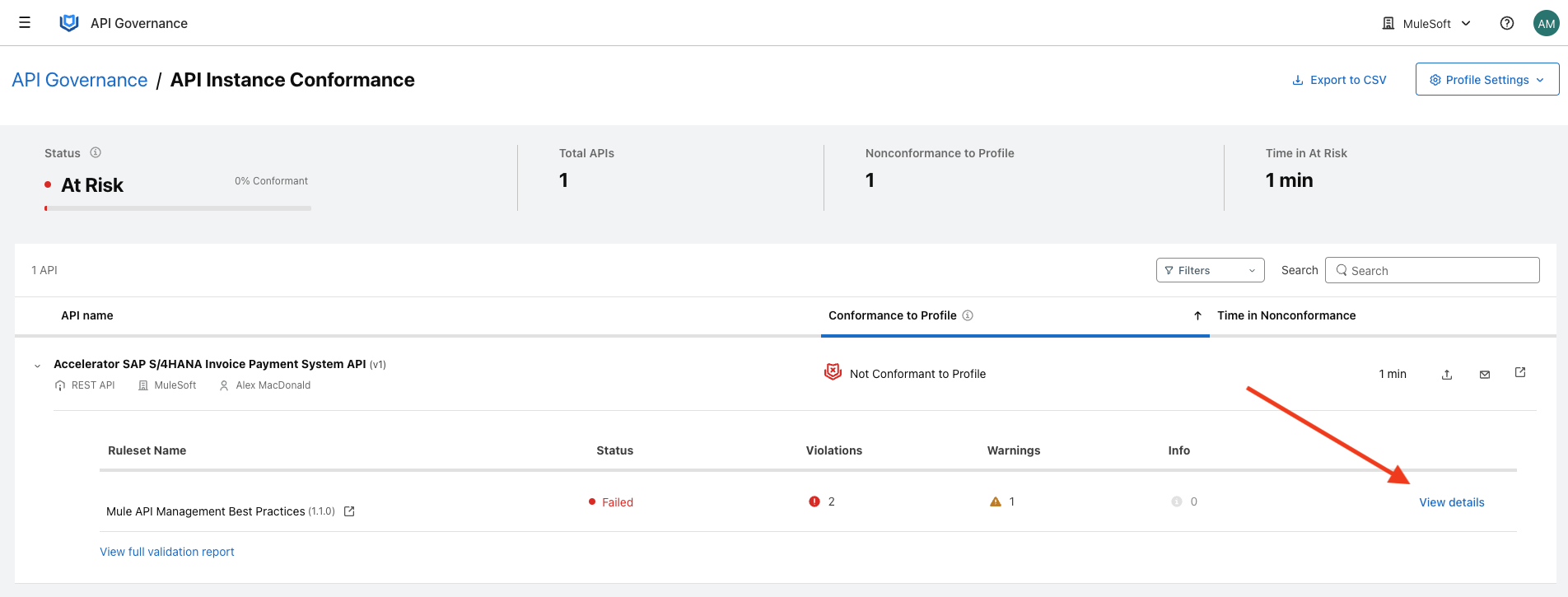
Then click ‘View details’
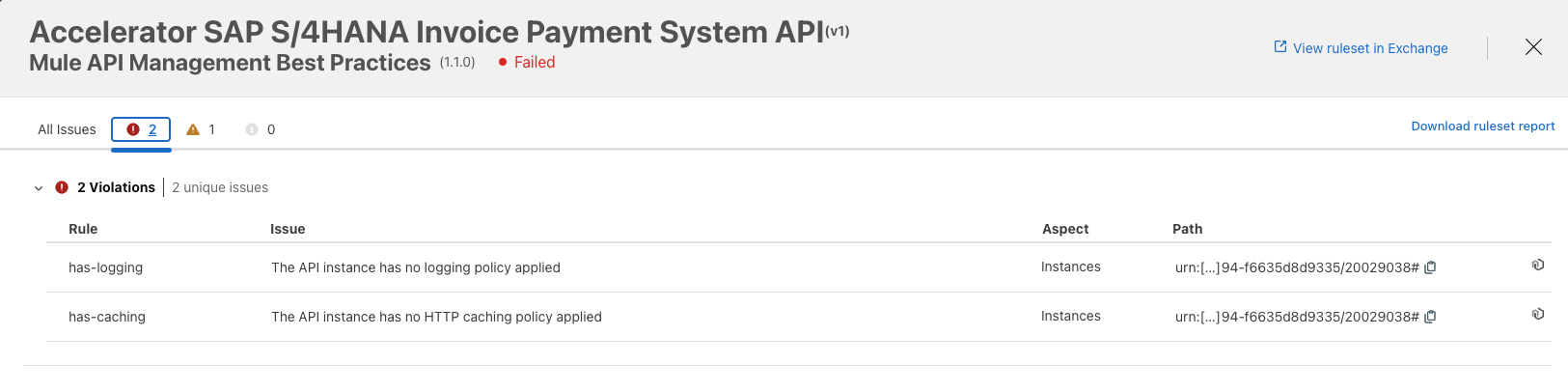
Here, you can see the missing API Management policies.
Step 2: View Instance Conformance Issues in API Manager
Navigate to Anypoint Platform > API Manager . Click on your API from lab 2.

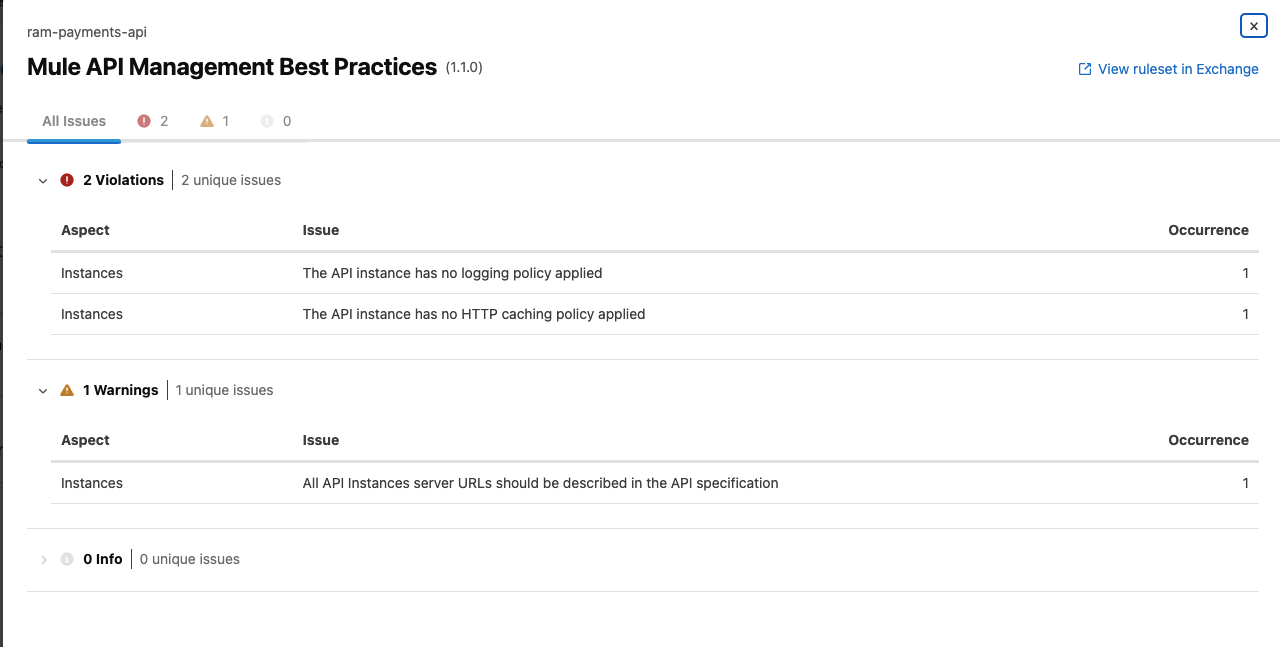
Instance Conformance appears in the API Summary pane, you can see it’s in Violation. Click on ‘Governance Report’ on the left, and then View details on the right to view nonconformance details for each ruleset.
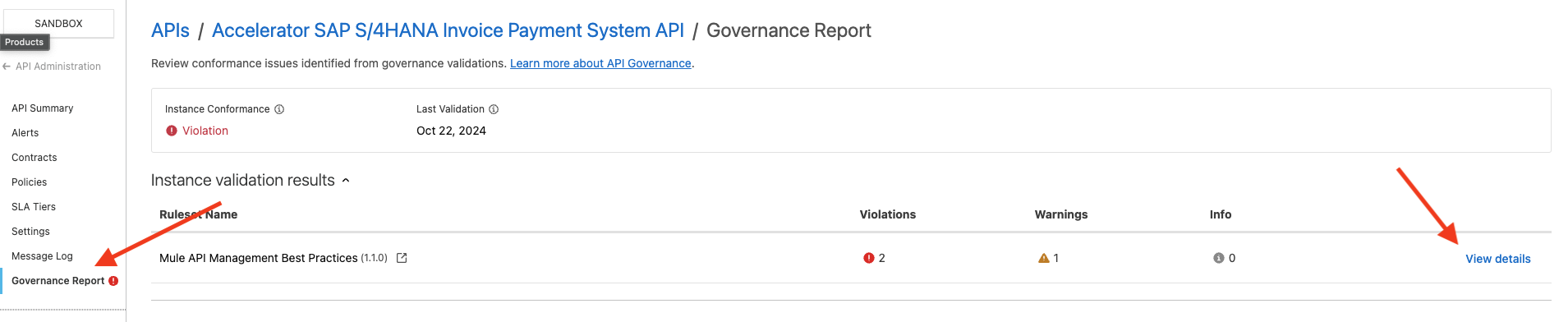
Here, you can see the warnings - this instance is missing 2 API Management policies that are part of MuleSoft Best Practices.
Step 3: Fix Instance Conformance Issues in API Manager
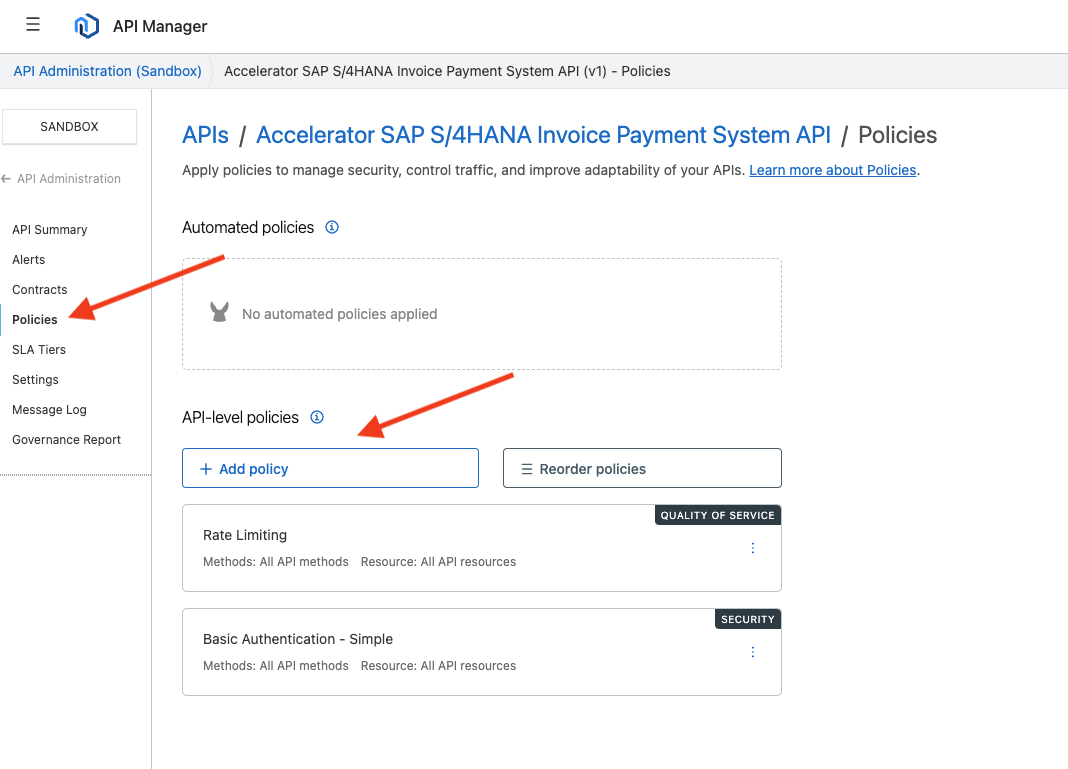
Click ‘Policies’ on the left, and then ‘Add policy’
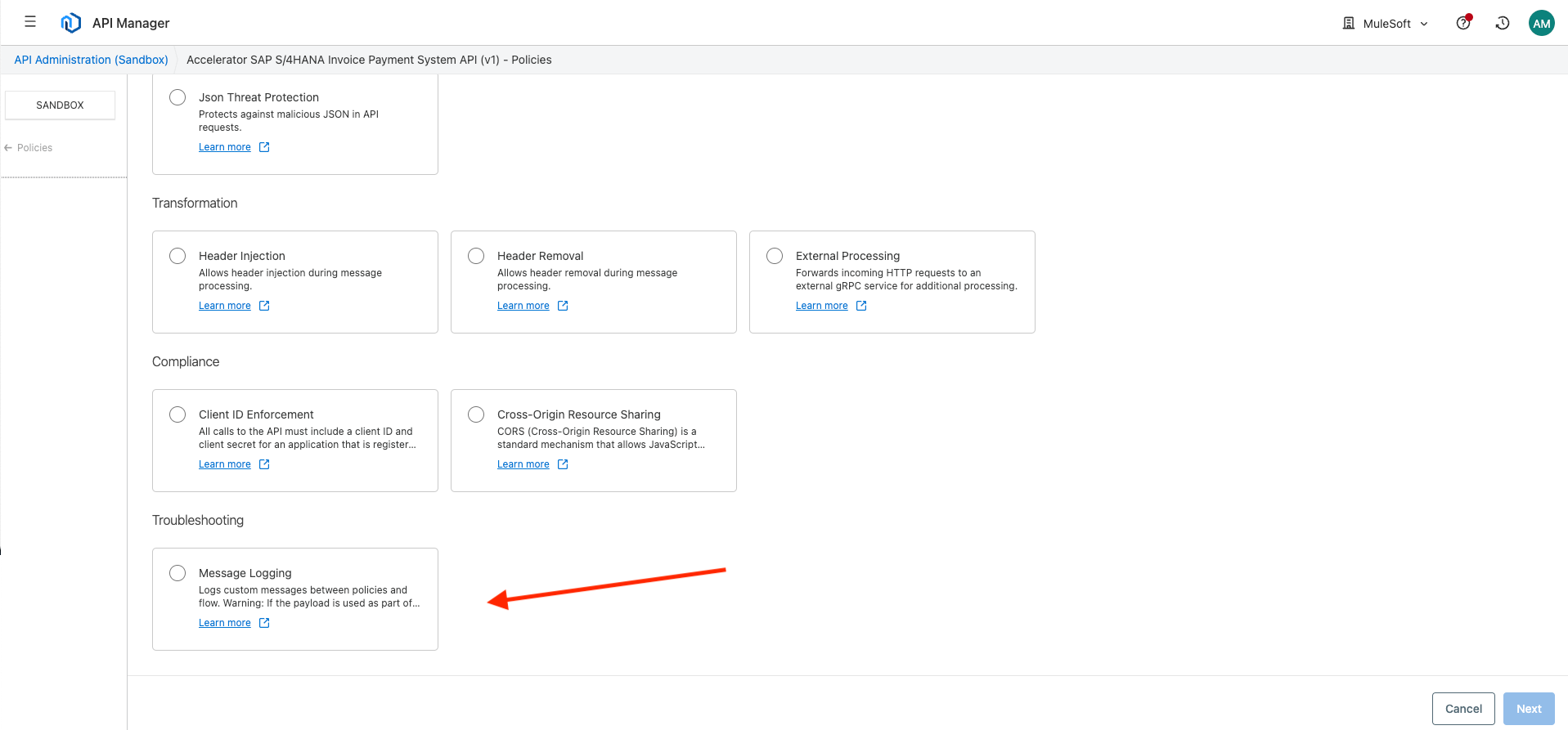
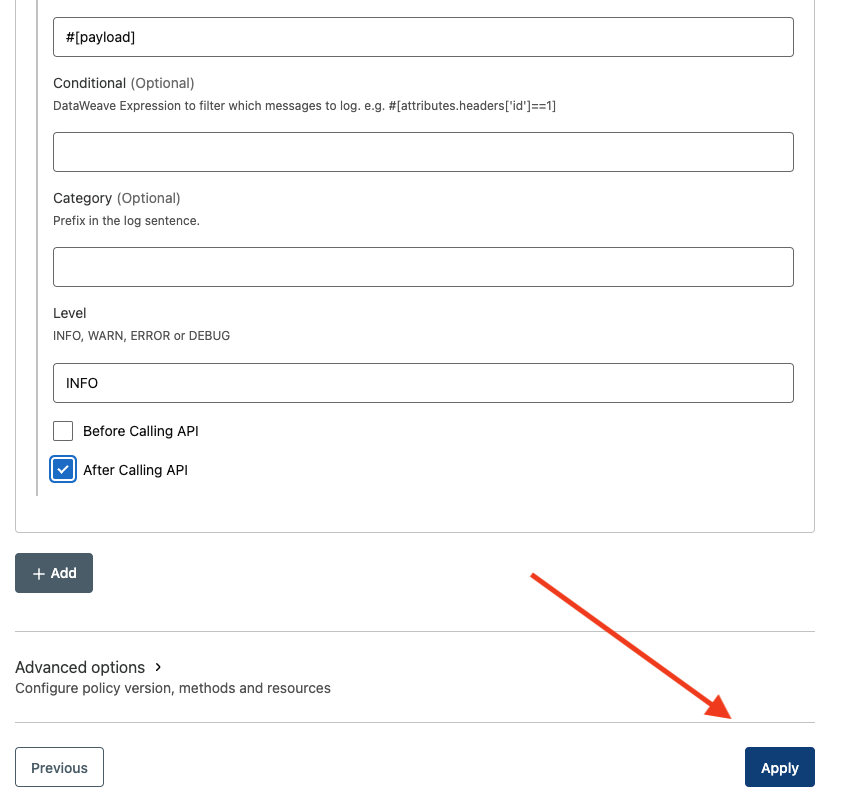
Scroll down and apply the Message Logging policy.
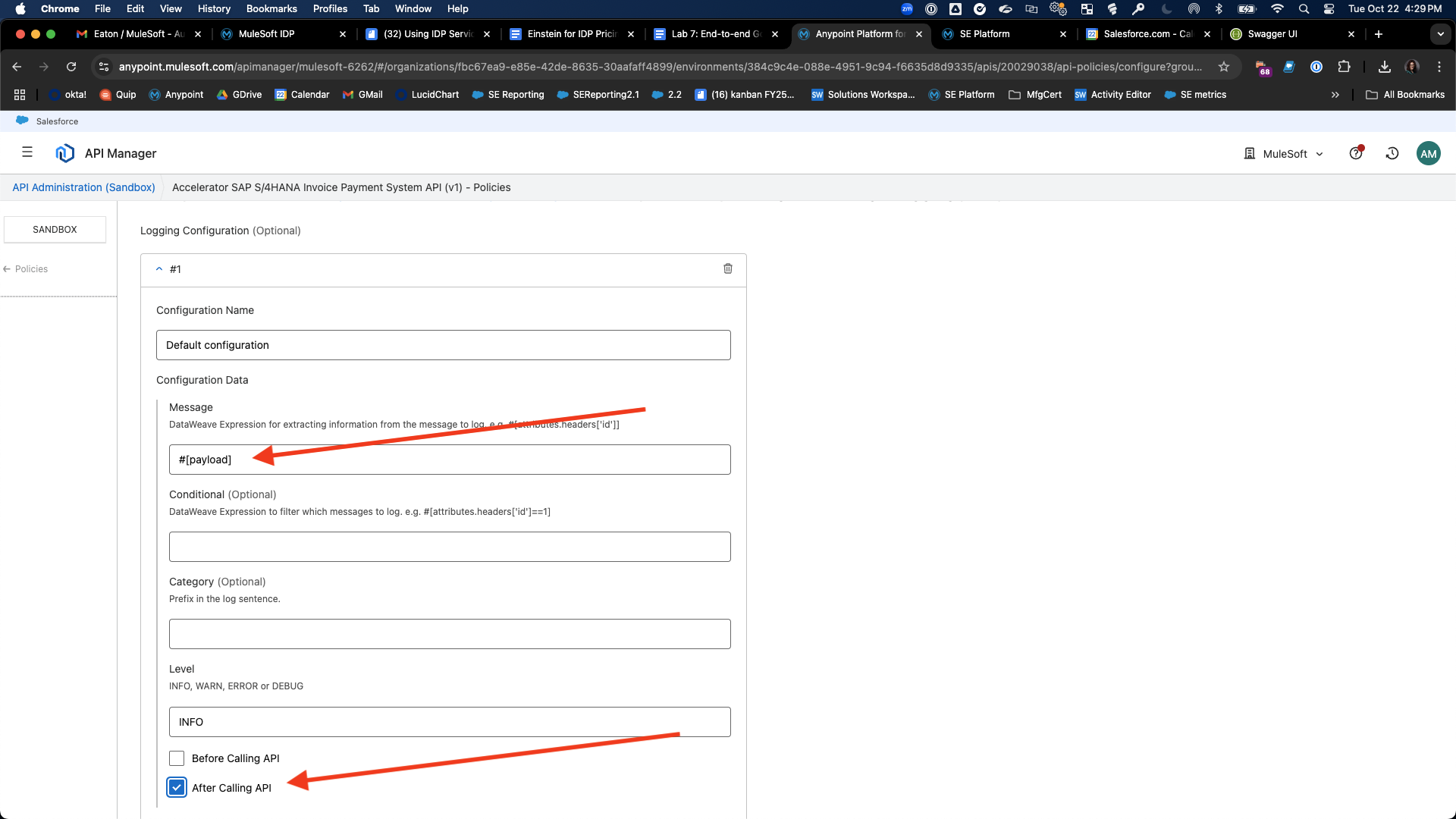
Add #[payload] to the Message box and check the After Calling API box .
Press apply.
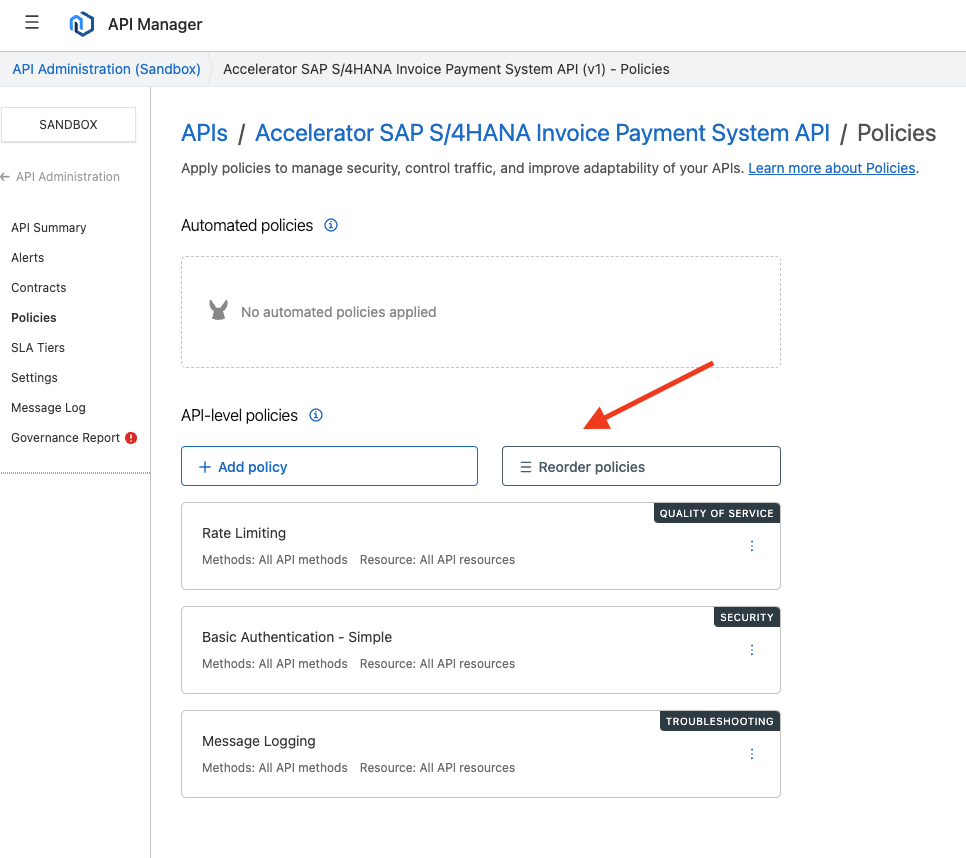
You’ll need to re-order your policies so message logging is on top. Press the Reorder policies button.
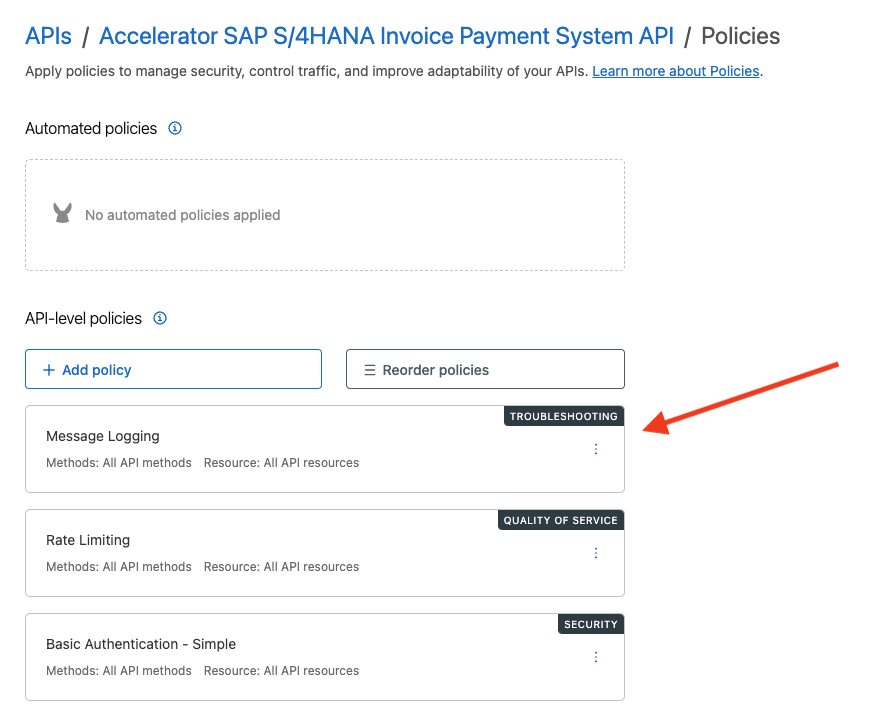
After reordering, your screen should look like this.
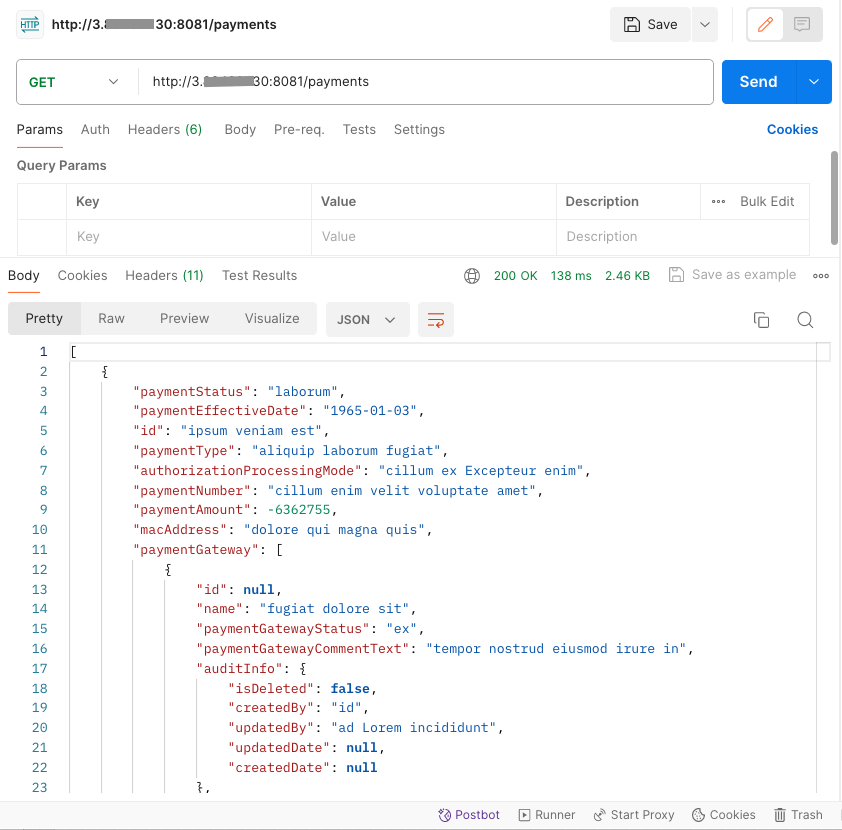
Return to Postman and click the Send button . You should receive a successful 200 response.
Click Message Log on the left side of the menu.
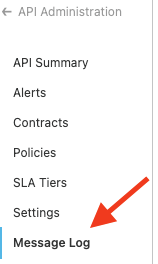
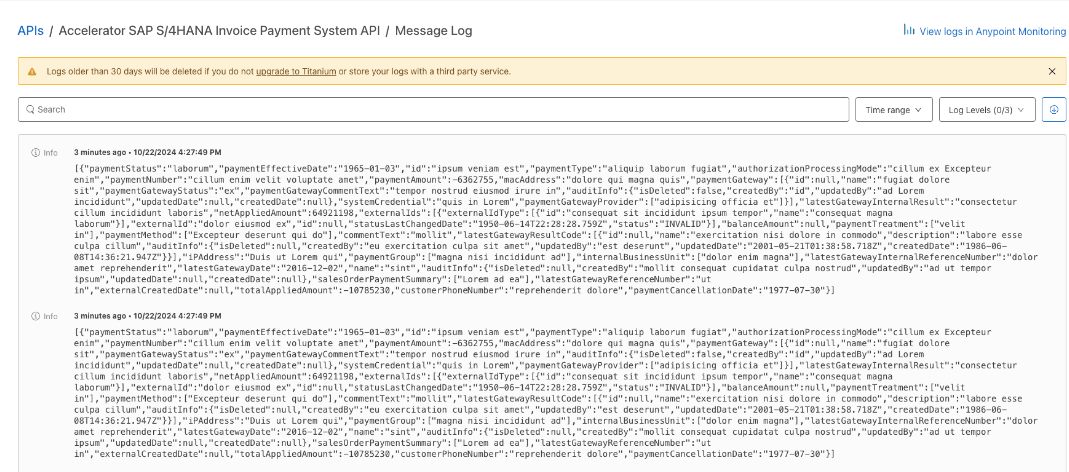
You’ll now see the payload response of calling your API in the logs.
View the Governance Report again.
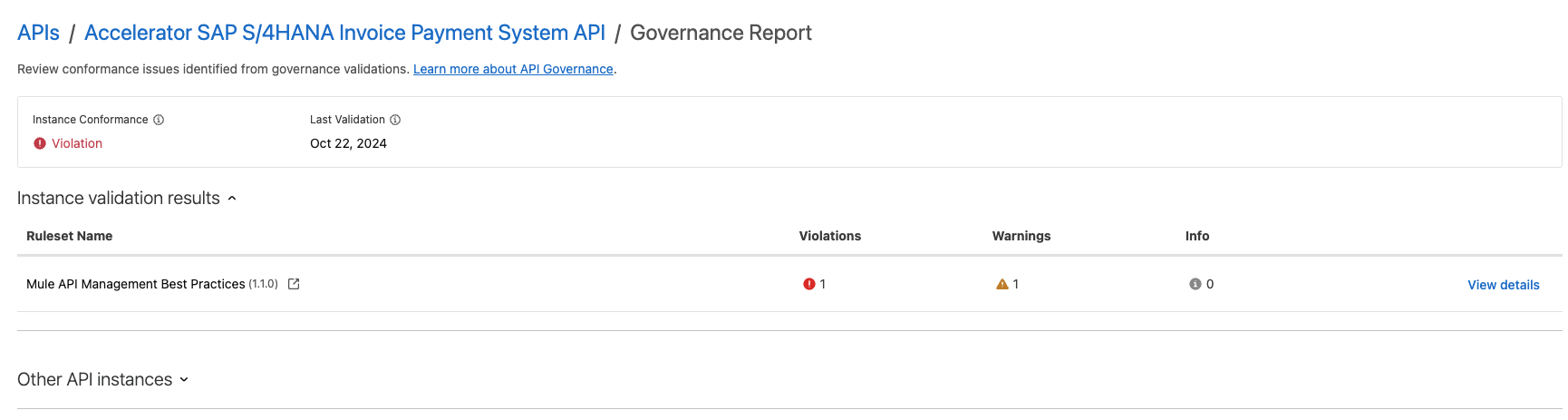
You can see the violations have decreased from 2 to 1.
Congratulations!
By completing labs 6 and 7, you have learned how to use Anypoint API Governance to apply end-to-end governance from API design to running API instances.